
FileMaker Pro Audit Trail “Revisited”
By Doug West
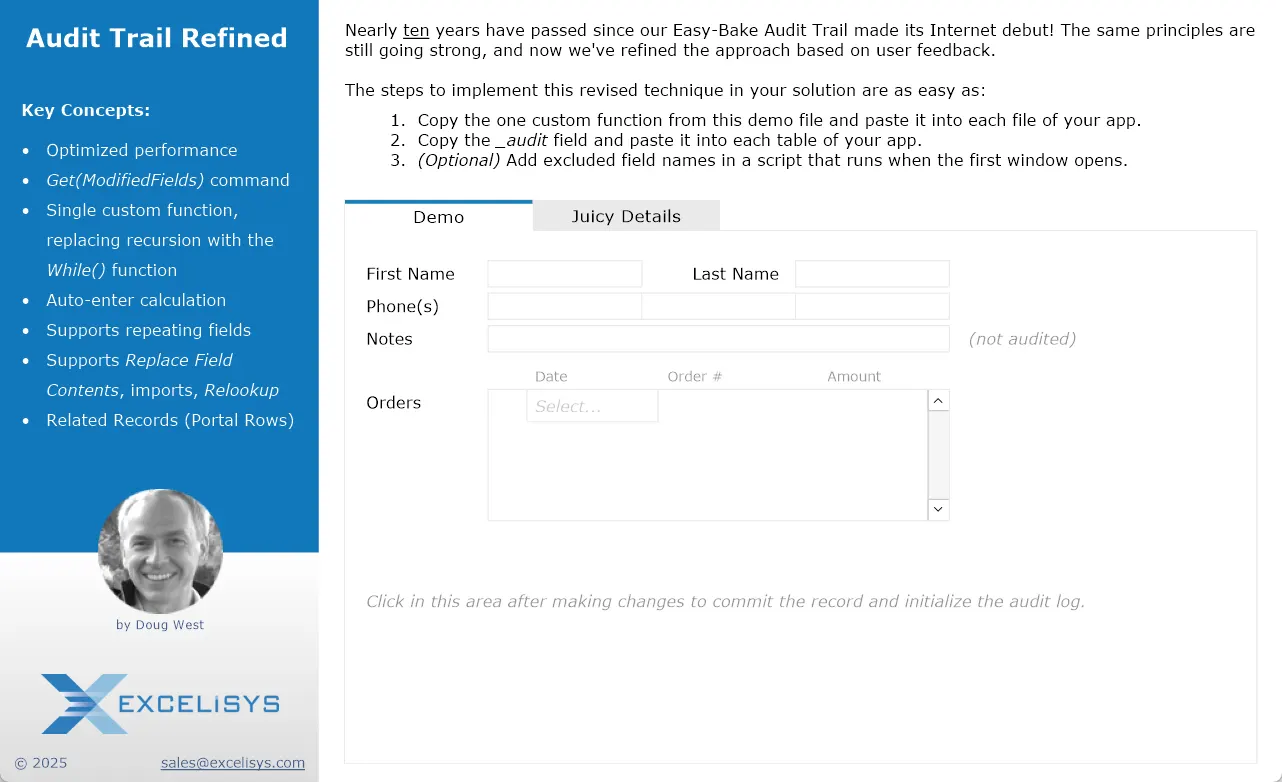
Nearly ten years have passed since our Easy-Bake Audit Trail made its internet debut! The same principles are still going strong, and now we’ve refined the approach based on user feedback.
The steps to implement this revised technique in your solution are as easy as:
- Copy the one custom function from this demo file and paste it into each file of your app.
- Copy the _audit field and paste it into each table of your app.
- (Optional) Add excluded field names in a script that runs when the first window opens.
This audit mechanism relies on FileMaker’s Get(ModifiedFields) function. Unfortunately, that function has suffered a bit of bugginess over the years. Recent FileMaker Pro release notes call out the following issues and enhancements:
FileMaker Pro 2023 (20.1.1):
- The Get(ModifiedFields) function now returns fields containing data when a new record is created.
- The Get(ModifiedFields) function incorrectly returned an empty result for fields modified with replace field contents, import, relookup, or drag and drop operations.
FileMaker Pro 2023 (20.1.2):
- The Get ( ModifiedFields ) function failed to return all field modifications when a field repetition other than the first repetition was modified.
The enhancement to include the appropriate fields when creating a new record, as well as the fix for repeating fields, allows us to remove the more time-consuming elements of this tip file’s previous iteration. It is no longer necessary to check every field in the table for changes when auditing new records and we no longer have to check every repetition of a repeating field. These improvements greatly improve performance as long as you have already updated to FileMaker Pro 2024 (21.0.1) or later.
Using the While() function instead of recursion in the custom function doesn’t have much of an impact on performance but could affect memory usage in some situations.
Questions about your project? We have answers. Talk to an eXcelisys developer — no sales pitch, just straight advice.
As was noted in prior revisions of our audit trail tip, this type of audit log stores the history on the same record as the current values. So what happens to the history when you delete the record? The history gets deleted along with it. A variety of solutions have been proposed to address this situation. If you’re concerned about this dilemma, the history can be copied to a background table through a scripted process before deleting the record.
•• Download AuditTrailRefined.zip ••
**This article is provided for free and as-is, use, enjoy, learn, and eXperiment at your own risk – but have fun! eXcelisys does not offer any free support or free assistance with any of the contents of this blog post. If you would like help or assistance, please consider retaining eXcelisys’ FileMaker Pro consulting & development services.
About eXcelisys, Inc. : Founded in 2001, eXcelisys (www.excelisys.com) was an FBA Platinum Partner from 2014-2018, FBA member from 2002 – 2020 and still a FileMaker Certified developer organization since version 7. eXcelisys specializes in designing, developing, customizing, supporting, consulting, migrating, upgrading, fixing, and integrating of database solutions for Desktop, Mobile, and Web applications. Our core technology competencies are FileMaker Pro and MySQL for database frameworks, along with FileMaker WebDirect, WordPress, MySQL, PHP, CodeIgniter, PostgreSQL, CSS, HTML5, and Javascript for web sites and web applications. Aside from providing eXcellent customer service, our goals are to use these technologies to intuitively automate your organization’s data solution needs seamlessly and flawlessly across the web, mobile, and desktop platforms. Contact eXcelisys today for a free estimate and consultation about making your business more efficient through intuitive and effective software automation. 866-592-9235.
eXcelisys, Inc. is an independent entity and this web site/information/blog post has not been authorized, sponsored, or otherwise affiliated with Claris, Inc. FileMaker is a trademark of Claris, Inc., registered in the U.S. and other countries.

![[FMP Tip-n-Trick] Integrating A.I. with FileMaker for Marketing Research](https://excelisys.com/wp-content/uploads/2025/08/ai-research-assistant-capture-500x383.png)



An EXCELLENT tool, and so easy and lean to implement, I’ve been using it for quite a while., Thanks so much!!!
(One little remark: I think in the the Orders table you need to replace the field “_changelog” with the field “_audit” from the Customers table.)
You’re correct! Thanks for the help with quality control, and I’m glad you’re putting the technique to good use. Our file has been updated accordingly.
Thanks for sharing, Doug! This is a great solution.
I have noticed extra carriage returns when _audit creates entries, those are below the last line, I solved it on my end, but maybe you want to update file as well. Regards.
Thanks for pointing that out. The download file has been updated to get rid of that extra noise.
Hi Doug, in your demo, what triggers the commit records for the fields in the Customers table and for the fields in the Orders table to activate the audit trail? Also in the Orders portal table, what is triggering the commit records to activate the audit trail? Thanks!
The first part of the auto-enter calculation on the “_audit” field shows: GetField ( “” ) & …
This triggers the calculation to re-evaluate when the record is commmitted after any field in the record has been modified. Kicking this off at the field level instead of the layout/interface level makes it available for processing during imports as well (as long as the “_audit” field is selected to perform auto-enter during the import).
Thanks, Doug!
Hi Doug, I have not switch over to FMP 2025 yet. We are still on FMP version 18. Will this work on version 18? If I follow your Easy-Bake Audit Trail demo, how can I set it up for fields in related tables? Thanks, again!
Yes, the While() function works with FileMaker 18. As noted in the tip file details, some issues with the Get(ModifiedFields) function have been resolved in recent updates, but the basics will work with FileMaker 18. Just copy/paste the custom function, then copy/paste the “_audit” field into each table you want to audit.
Thanks again, Doug!
Great!
Strange. I tried out several times with your demo on FMP 18 and sometimes the existing record commits and the audit log will capture the update and sometimes it doesn’t. If I close the demo and start it up again, the original data is not shown in the audit log only the updated data. I would get from “” to new data eventhough there was data there originally. Do I need to click in the designated area after making changes to commit the record and “activate” the audit log? I thought maybe I can add a button to commit the record for this purpose but that didn’t do much. Thanks.
As noted in the tip file details, FileMaker Pro 2023 (20.1.1) changed the Get(ModifiedFields) function to return fields containing data when a new record is created. Before that fix, the function would not return field contents entered before the first time the record was committed.
This means that creating a record in FileMaker 18, editing fields, and then committing the record for the first time will result in no data to audit. You would instead have to script the creation of new records to commit before editing any field values if you need it to work in FileMaker 18. Otherwise, you could consider switching to the initial version of this tip file at: https://excelisys.com/fmp-tip-n-trick-filemaker-pro-13-easy-bake-audit-trail/
Thanks !